Download Haryana Family ID
If your PPP Haryana application is approved, the next job is simple: download your ID and take a print. A lot of people get stuck here because they don’t know where to click or which button to press. This guide shows you every step, so even if you are doing it for the first time, you won’t face any problems.
Things to Keep Ready Before You Start
Before you begin the Family ID Download, keep these things handy:
- Your 8-digit ID number
- The mobile number registered with your family ID
- A phone or laptop with internet
- A PDF reader app (most phones already have one)
If you don’t remember your ID number, don’t worry — there is a “Forgot ID” option on the portal too.
Haryana Family ID Login and Download
Here is the easiest way to complete your PPP Login and get your card downloaded.
Open the Official Website
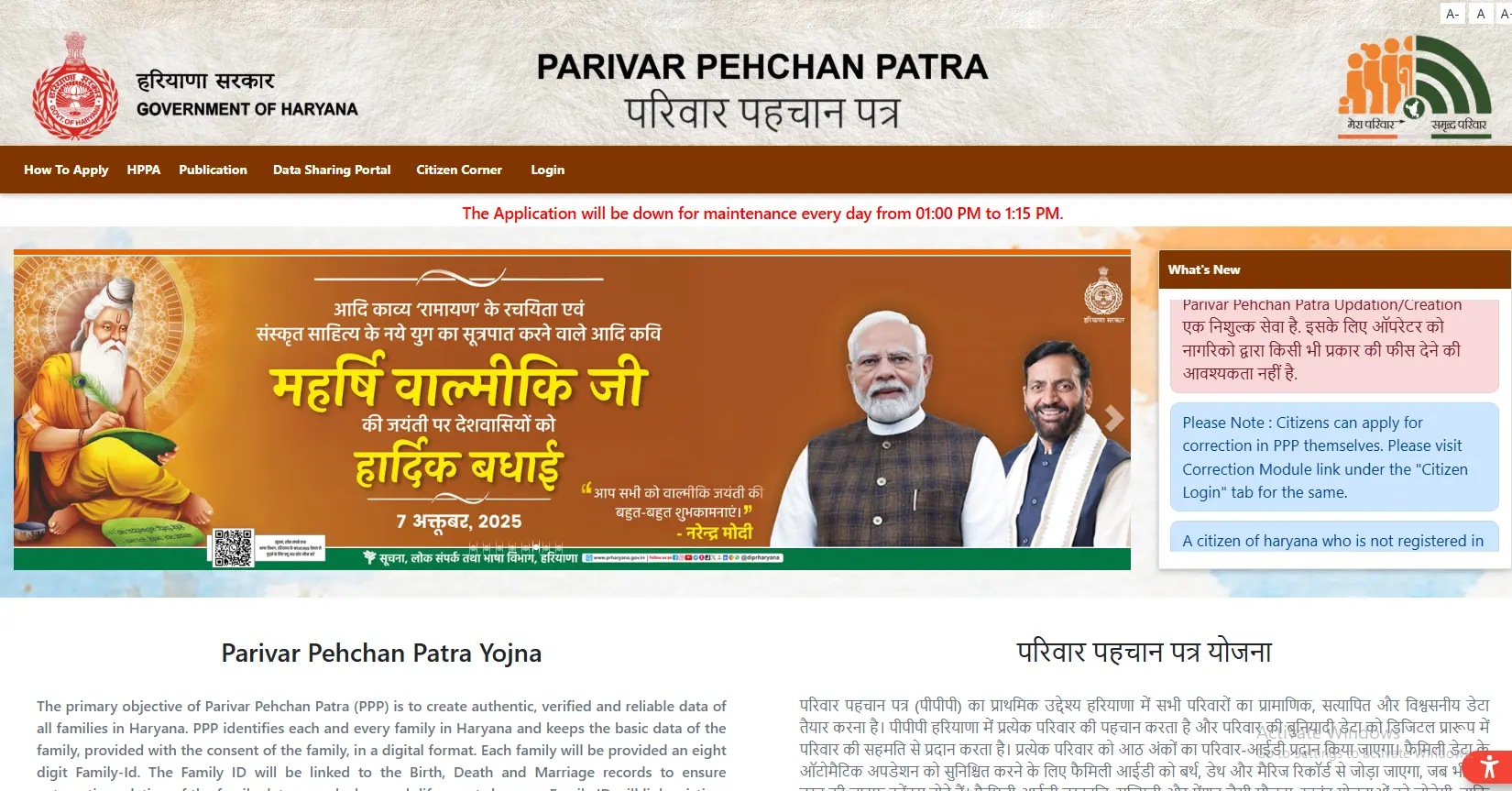
Open the official PPP Haryana portal on your phone or computer browser. Go to the Citizen Corner section, where all login and download options are given.
Do Your PPP Login
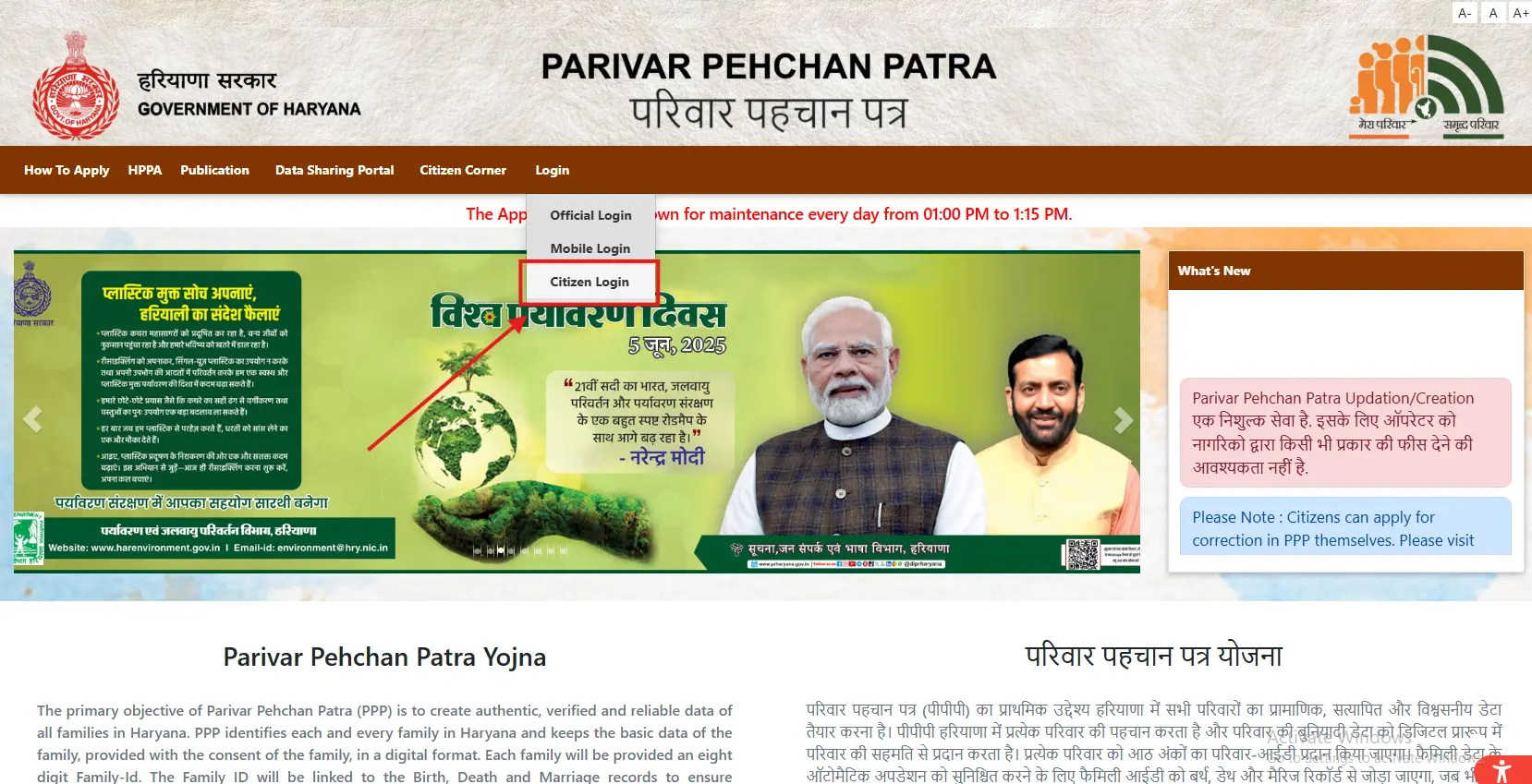
This is the main step. To complete PPP Login, type your 8-digit ID number in the login box. An OTP will come on your registered mobile number. Enter the OTP and you’re inside your account.
Tip: Keep your phone nearby before you start, because the OTP box closes after some time if you take too long.
Find the Download Option
After login, you’ll land on your dashboard. Look for a button called “Print Family ID” or “Download Family ID.” It’s usually visible on the home screen itself, no need to search deep.
Click and Generate the PDF
Tap on the download button. The system will make a PDF copy of your card. This may take a few seconds, so be patient and don’t refresh the page again and again.
Save It on Your Device
Once the PDF opens, save it in your phone’s downloads or gallery. Keep one copy safe on WhatsApp to yourself, or in email, so you never lose it.
Take a Print
Now go to any print shop or use your home printer. Print it on plain A4 paper. That’s it — your card is ready to use.
Family ID Download Not Working? Try These Fixes
Sometimes the download button doesn’t show up, or something goes wrong during Family ID Download. Here’s what to do in each case:
- ✓Download button missing: This usually means your application is still under process. Wait for the status to change to “Approved.” Once approved, the download option appears on its own.
- ✓PDF not opening: Your phone may not have a PDF app installed. Download any free PDF reader from the app store and try again.
- ✓OTP not coming / login failing: Check if your mobile number is correctly linked with your family ID. If OTP doesn’t come after 2-3 tries, use the “Forgot ID/Password” option and reset it.
- ✓Print looking blurry or cut: While printing, choose “Actual Size” in the print settings, not “Fit to Page.” Also print in high quality mode for a clear copy.
Why This Card Matters for Every Family
Your Family ID Haryana card is not just a piece of paper. It is used almost everywhere now:
- ✓Getting old age or widow pension
- ✓Applying for scholarships for kids
- ✓Ration card and PDS benefits
- ✓Ayushman Bharat health card
- ✓Any property or land related work at the tehsil office
- ✓Getting caste, income, or residence certificates faster
Since one card covers your whole family, you save a lot of time that used to go into collecting separate documents for each scheme.
Keep These Points in Mind
- Your ID is only downloadable after your PPP Haryana application status shows “Approved.”
- Keep a soft copy saved in your email, so you always have a backup ready.
- Every time you update any family member’s details, download a fresh copy again.
- Only the head of the family, or someone with access to the registered mobile number, should do the login and download.
- Carry your Aadhaar card along with the printed family ID when you visit any government office — officers sometimes ask for both.
Need More Help?
If you are still stuck after trying the above steps, you can:
- Visit your nearest Saral Kendra or CSC centre, they can download and print it for you
- Call the PPP Haryana helpline number listed on the official website
- Ask a family member who has already done their Family ID Download to guide you
What Is PPP Haryana?
PPP Haryana stands for Parivar Pehchan Patra, Haryana. It is an 8-digit card given by the Haryana government to every family in the state. This single card holds all your family details — member names, income, age, and address. Once you have it, you don’t need to submit separate documents again and again for government schemes.
Think of it like a family Aadhaar card. One card, whole family’s information.
Important Links
| Purpose | Link |
|---|---|
| Official Website | meraparivar.haryana.gov.in |
| Citizen Corner (for download) | ppp-office.haryana.gov.in |
Downloading your PPP Haryana card is not a hard task once you know the right steps. Just complete your PPP Login, click on download, save the PDF, and take a print. Keep your details updated from time to time so your family ID always shows correct information. Follow this guide step by step, and you’ll have your card downloaded and printed in just a few minutes.